How to add a booking chat to your website
Last updated 2026-11-01 · by Venu Gopal Reddy Muvva, founder
To add a booking chat, sign up for CallAnswerDesk and pick a business template. Test the receptionist in the browser, then copy the script tag from the Numbers & channels page and paste it into your website's HTML.
Steps
- Start free sign-up. Go to the signup page and press Start free. Enter your name, email, and password. No card is needed.
- Set up your receptionist. On the set-up page, pick your business type from the templates. Enter your business name and country to start.
- Test the receptionist. Press Create receptionist and test it. Use the Start voice call button or Type instead to check that it answers correctly.
- Copy the script tag. Open the Numbers & channels page. Find the web chat widget section and copy the one-line script tag provided.
- Paste into your website. Paste the script tag into your website's HTML. If you use a website builder, look for a custom code box in the footer settings.
- Verify the chat bubble. Reload your website. A chat bubble should appear in the corner. Click it to confirm the receptionist loads and answers.
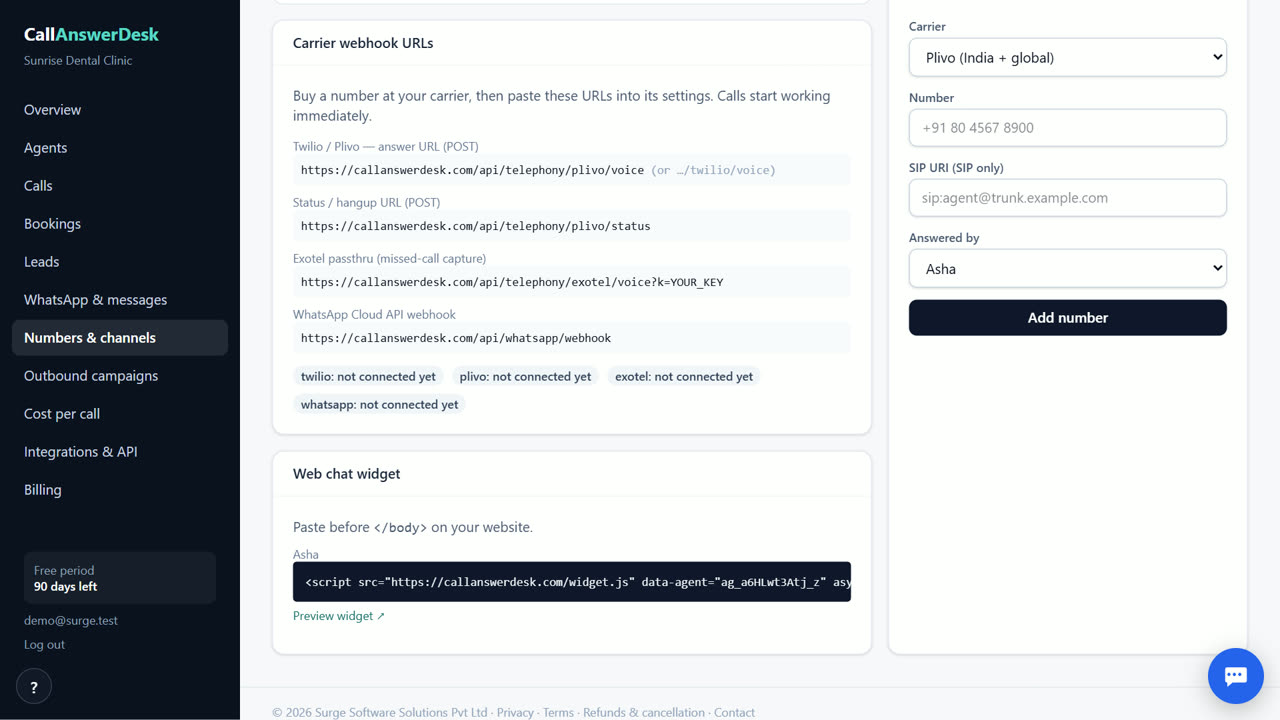
Find the script tag
After you create your receptionist, go to the Numbers & channels page in your dashboard. This page lists your active channels. Look for the web chat widget section. It contains a single line of code that starts with a script tag. This code tells your website to load the CallAnswerDesk chat bubble. Copy the entire line exactly as shown. Do not change any parts of the code. The tag includes your unique account ID, so it only works for your specific receptionist.
Where to paste the code
If you have direct access to your website files, open the main HTML file. Paste the script tag just before the closing body tag. This ensures the chat loads after the page content. If you use a website builder like Wix, Squarespace, or WordPress, look for a custom code or HTML injection box. These are usually found in the footer settings or the site-wide code section. Paste the tag there. Save your changes and publish the site. The builder will handle the rest of the placement for you.
Check that it works
Once the code is live, visit your website on a different device or in an incognito window. Look for the chat bubble in the bottom corner of the screen. Click it to open the chat window. The receptionist should greet you and be ready to answer questions. Try asking about your business hours or booking an appointment. If the bubble does not appear, check that the script tag was pasted correctly and that your website is not blocking external scripts. Clear your browser cache and try again.
Manage conversations
Every time a visitor uses the chat, the conversation is saved in your CallAnswerDesk dashboard. You can view these under the Conversations page. If the chat books an appointment, it appears under Bookings. If the visitor leaves a message, you receive an email alert. You can also turn on a daily summary email to get a digest of all activity. This helps you track who visited your site and what they asked without checking the dashboard all day.
When CallAnswerDesk is not the right tool
CallAnswerDesk is not the right tool if you need to answer real phone calls on your own number today. That feature is coming soon. It also does not support WhatsApp replies yet. If you need live phone answering with human backup right now, look at Smith.ai. If you need WhatsApp support in German-speaking Europe, fonio.ai is a better fit. CallAnswerDesk works best for web chat and browser voice calls only.
Questions
Do I need a developer to add the chat?
No. You only need to copy one line of code and paste it into your website. If you use a website builder, you can paste it into the custom code box without writing any code.
Will the chat work on mobile phones?
Yes. The chat bubble is responsive. It adjusts its size and position so visitors can use it easily on both desktop computers and mobile phones.
Can I change the chat bubble color?
The chat bubble uses the default CallAnswerDesk design. You cannot change the color or shape of the bubble itself. However, you can customize the greeting and the information it provides in the Agents page.
What happens if my website is slow?
The chat loads from our servers, not yours. It should not slow down your website. The script tag is lightweight and loads asynchronously, meaning it does not block the rest of your page from loading.
Related
Free for your first 3 months. Then pay only for what you use.
Start free — 3 months on us