Appointment booking chatbot for your website
Last updated 2026-11-01 · by Venu Gopal Reddy Muvva, founder
CallAnswerDesk adds a chat bubble to your site where visitors book appointments. It checks your calendar for clashes and confirms the time before saving it.
Steps
- Start free sign-up. Go to the sign-up page and press 'Start free — 3 months on us'. Enter your name, email, and password. No card is needed.
- Set up your business. Pick a template like Clinic or Salon. Enter your business name, hours, and services. You can also try a sample clinic to see how it works.
- Test the booking. Go to the test call page. Press 'Start voice call' or 'Type instead'. Ask it to book an appointment to see how it checks the calendar.
- Add to your website. Open Numbers & channels. Copy the script tag and paste it into your website. A chat bubble appears for your visitors.
- Check your bookings. Open the Bookings page to see new appointments. You will also receive an email for every booking made through the chat.
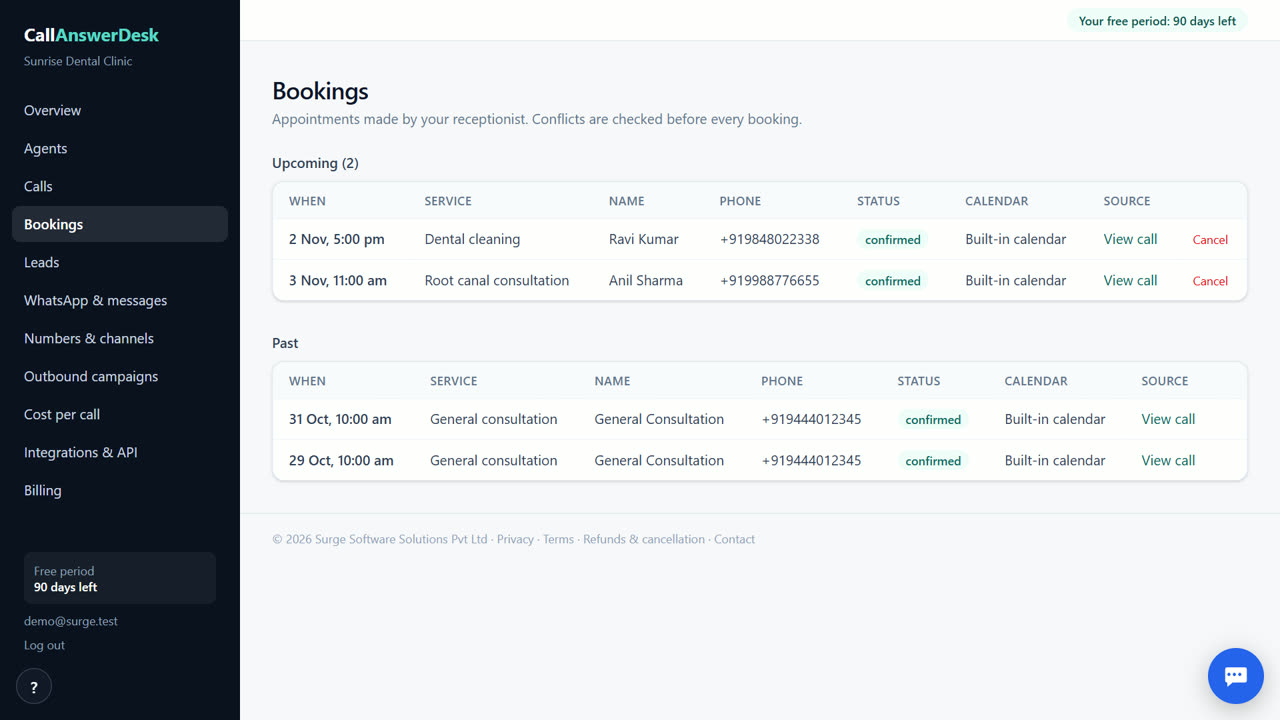
How the chat booking works
When a visitor opens the chat bubble, the AI asks for their name and preferred time. It checks your built-in calendar to see if that slot is free. If the time is taken, it offers the next available slots. The AI reads back the confirmed time and date to the visitor. Once the visitor agrees, the booking is saved. You receive an email with the visitor's name, phone number, and the booked time. This happens instantly, even if your office is closed.
Calendar clash checks
The system prevents double-booking automatically. It looks at your existing appointments and only offers times that are actually free. If a visitor tries to book a time that is already taken, the AI politely explains it is unavailable and suggests alternatives. This saves you from the hassle of rescheduling. You can manage your availability in the Agents page. Set your working hours and block out times when you are busy with other tasks. The chat respects these rules every time a visitor books.
Email alerts and summaries
You do not need to check the dashboard constantly. An email arrives in your inbox for every new booking. The email includes the visitor's contact details and the appointment time. You can also turn on a daily summary email. This lists all bookings and messages from the day in one place. It helps you plan your schedule in the morning. The emails are plain text and easy to read on your phone. You can reply directly to the visitor from your email client if you need to.
Adding the chat to your site
You do not need a developer to install the chat. Open the Numbers & channels page in your dashboard. You will see a short line of code called a script tag. Copy this code. Paste it just before the closing body tag on your website. Save the page. The chat bubble now appears in the corner of your site. Visitors can click it to start a conversation. The chat works on mobile and desktop. It loads quickly and does not slow down your website.
When CallAnswerDesk is not the right tool
If you need to answer real phone calls on your own number today, this tool is not ready for that. Phone numbers and live transfers are coming soon. If you need WhatsApp replies or Google Calendar sync, those are also not available yet. For those needs, look at tools that offer phone answering and calendar integration now. This tool is best for businesses that want to capture web visitors and book them into a simple calendar.
Questions
Does it work on mobile phones?
Yes. The chat bubble works on mobile browsers. Visitors can book appointments from their phones. The interface adjusts to fit small screens.
Can I change the booking times later?
Yes. You can manage bookings from the Bookings page. You can also update your available hours in the Agents page. The chat will use your new hours for future bookings.
What if the visitor cancels?
The AI can take a message if the visitor wants to cancel. You will receive an email with their request. You can then update the calendar manually or reply to the visitor.
Is there a limit to how many bookings I can take?
No. There is no limit on the number of bookings during your free period. After that, web chat conversations stay ₹0; only phone minutes and WhatsApp messages are charged at cost, once they are live.
Related
Free for your first 3 months. Then pay only for what you use.
Start free — 3 months on us