Teach an AI receptionist your FAQs
Last updated 2026-11-01 · by Venu Gopal Reddy Muvva, founder
You add question-and-answer pairs in the Agents page under the knowledge base. The receptionist answers only from these entries and your business settings. If it does not know the answer, it says so and offers to take a message.
Steps
- Start free sign-up. Go to the sign-up page and press Start free. Enter your name, email and password. No card is needed.
- Set up your agent. On the set-up page, pick your business type. Enter your hours, services and prices. Press Create receptionist and test it.
- Add knowledge base entries. Open the Agents page. Select your agent. Add your FAQs as question-and-answer pairs in the knowledge base section.
- Test the answers. Go to the test call page. Press Start voice call or Type instead. Ask one of your FAQs to check the answer.
- Check message handling. Ask a question not in your list. The receptionist should say it does not know and offer to take a message.
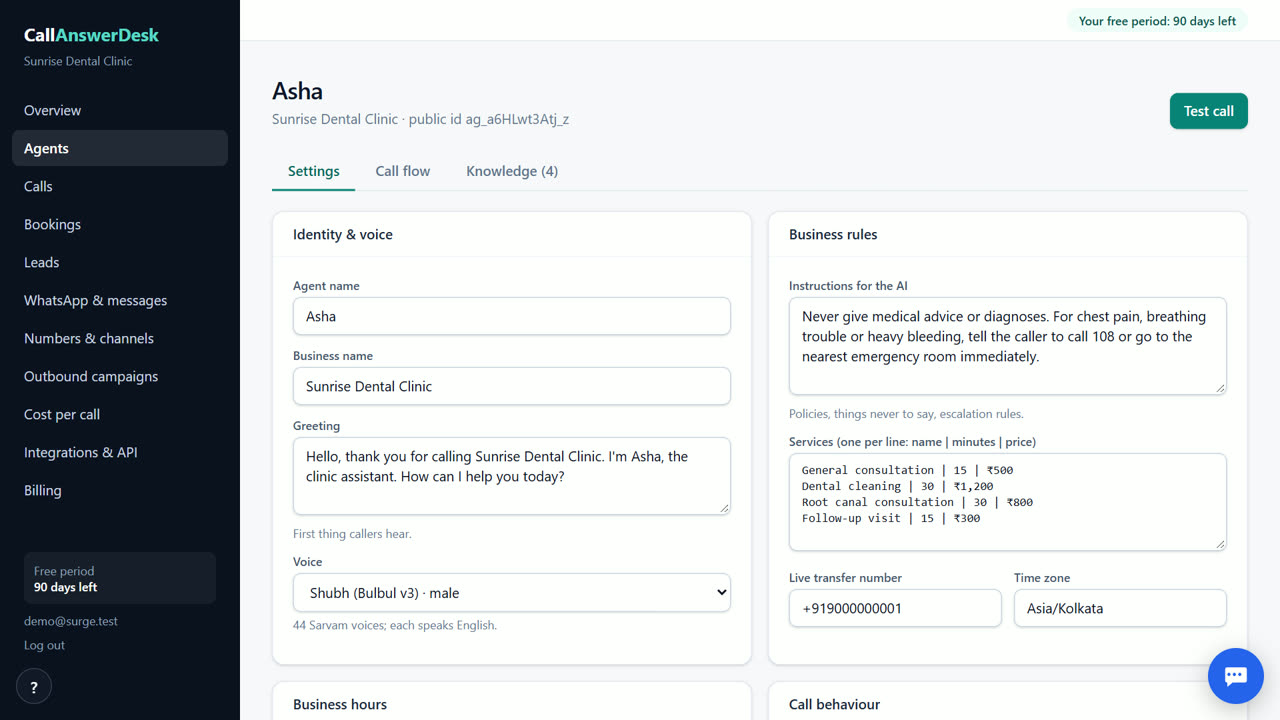
What the knowledge base does
The knowledge base is the list of questions your receptionist is allowed to answer. It uses only these entries and your business settings like hours and prices. It does not guess. If a visitor asks something not in the list, the receptionist says it does not know. It then offers to take a message with the visitor's name and number. This keeps your answers accurate and prevents wrong information.
How to add your FAQs
Open the Agents page in your dashboard. Click on your receptionist. Find the knowledge base section. Add each FAQ as a pair: the question on one line, the answer on the next. Use clear, short answers. Include common questions like opening hours, prices, address and parking. You can add as many pairs as you need. Save your changes. The receptionist uses these immediately in new conversations.
Testing your setup
Use the test call page to check your FAQs. Press Start voice call to talk, or Type instead to type. Ask a question from your knowledge base. Listen to the answer. Then ask a question you did not add. The receptionist should say it does not know. It should offer to take a message. This test is free. You can repeat it as often as you need until the answers feel right.
Keeping answers up to date
Your business changes over time. Prices may go up. Hours may shift for holidays. Open the Agents page to update your knowledge base. Change the answer text to match your current facts. The receptionist uses the latest version right away. You do not need to restart anything. Check your FAQs monthly to keep them accurate. This helps your receptionist stay helpful and trustworthy for visitors.
When CallAnswerDesk is not the right tool
CallAnswerDesk is not the right tool if you need real phone calls answered on your own number today. That feature is coming soon. If you need phone answering now, look at Goodcall or fonio. If you need WhatsApp replies today, those are also not available yet. This tool works as a web chat and browser voice call. It is for businesses ready to start with chat and test calls.
Questions
Can the receptionist answer questions not in the knowledge base?
No. It answers only from your knowledge base entries and business settings. If it does not know, it says so and offers to take a message.
How many FAQs can I add?
You can add as many question-and-answer pairs as you need. There is no limit. Add the questions your customers ask most often.
Do I need to restart the chat after adding FAQs?
No. Changes to the knowledge base apply immediately to new conversations. You do not need to restart or refresh anything.
What happens if a visitor asks something I did not add?
The receptionist says it does not know the answer. It then offers to take a message with the visitor's name and phone number. You get an email with that message.
Related
Free for your first 3 months. Then pay only for what you use.
Start free — 3 months on us