How to take customer messages after hours
Last updated 2026-11-01 · by Venu Gopal Reddy Muvva, founder
When your office is closed, the AI receptionist answers the chat or call and asks for the customer's name, number, and message. It sends you an email with these details straight away (alerts wait until after 06:00 IST at night), and you can also turn on a daily summary at 8 AM.
Steps
- Start free sign-up. Go to the signup page and press Start free. Enter your name, email, and password. Your 3-month free period starts now.
- Set up your business. On the set-up page, pick your business type like clinic or salon. Add your hours, services, and FAQs so the receptionist knows what to answer.
- Test the message flow. Go to the test call page. Press Start voice call or Type instead. Ask it to take a message. Check that it asks for a name and number.
- Enable email alerts. Go to the Agents page. Make sure email notifications are on. You will get an email for every new message or booking.
- Review messages. Open the Conversations page to see all messages. You can also turn on the daily summary email in Integrations to get a digest at 8 AM.
How it takes messages
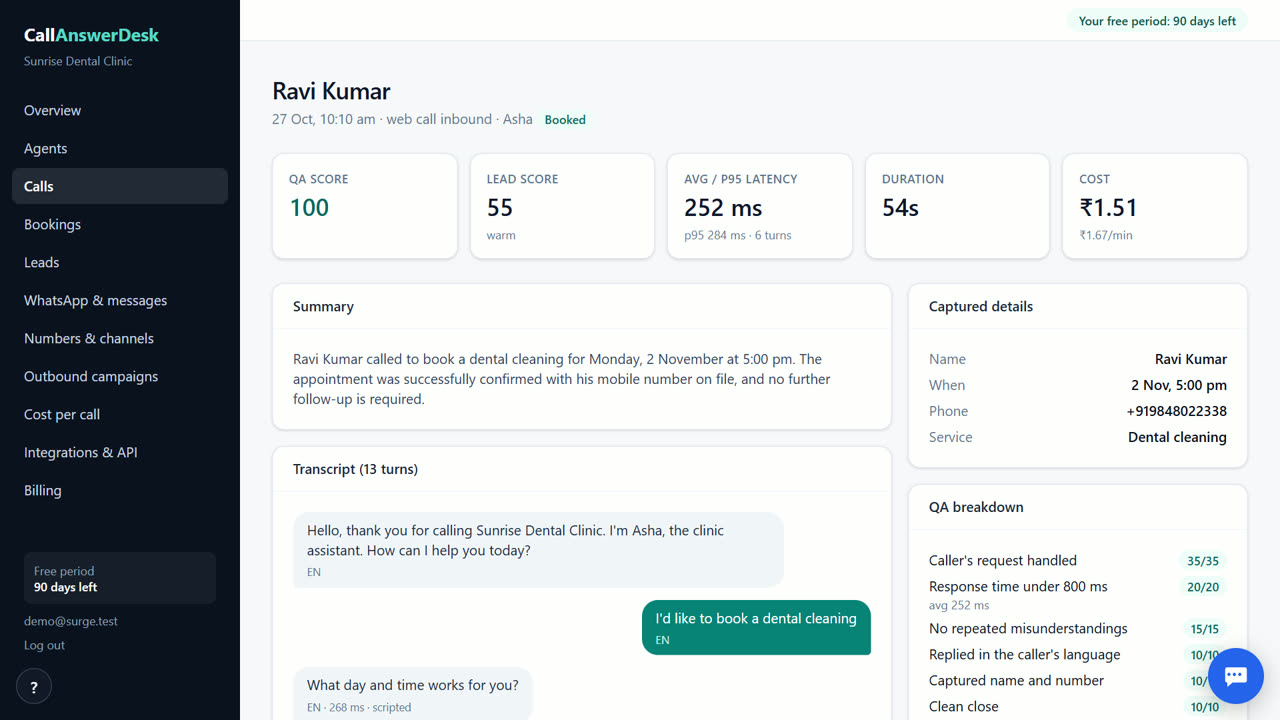
When a customer reaches out after hours, the receptionist answers what it can from your knowledge base. If it cannot help, it asks for the customer's name, phone number, and what they need. It saves this as a message. You do not need to be online. The system works in the background and stores the details in your account.
Getting the email alert
As soon as a message is saved, the system sends an email to you. The email includes the customer's name, number, and the full message text. This lets you reply quickly when you open your inbox. You can also turn on a daily summary email. This sends one email at 8 AM with all messages from the previous day, which is useful if you get many enquiries.
Checking the details
You can read every message in the Conversations section of your dashboard. Each entry shows the transcript and the AI summary. You can also see the lead score, which tells you if the customer is hot, warm, or cold. This helps you prioritize who to call back first. You can export these details as a CSV file if you want to move them to another tool.
Setting up your hours
On the set-up page, enter your business hours. The receptionist uses this to know when it is open. If it is closed, it knows to take a message instead of booking. You can update these hours anytime on the Agents page. This ensures the receptionist always gives the correct status to your customers.
When CallAnswerDesk is not the right tool
CallAnswerDesk is not the right tool if you need live phone transfer to staff right now. That feature is coming soon with phone numbers. If you need real human receptionists answering calls in North America, look at Smith.ai. If you need German phone and WhatsApp support with GDPR paperwork, fonio.ai is a better fit. CallAnswerDesk works today as web chat and browser voice calls.
Questions
Do I get an email for every message?
Yes. You get an email for each new message and booking. You can also turn on a daily summary email at 8 AM if you prefer a digest.
What information does it collect?
It asks for the customer's name, phone number, and the message they want to leave. It saves these details in your Conversations page.
Can I see the messages later?
Yes. All messages are stored in the Conversations section. You can read the transcript, see the AI summary, and check the lead score for each one.
Does it work on weekends?
Yes. The receptionist works 24/7. If your hours say you are closed on weekends, it will take messages instead of booking appointments.
Related
Free for your first 3 months. Then pay only for what you use.
Start free — 3 months on us